Delivery Tab
- None

- This will create a .csv file that can be downloaded from Processing > Process History
- FTP
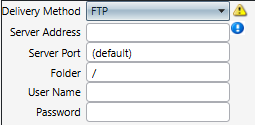  if the delivery method is email of ftp and the file contains sensitive data, an encryption method must be selected, or the file will not be delivered. if the delivery method is email of ftp and the file contains sensitive data, an encryption method must be selected, or the file will not be delivered.
- Server Address - This is the host name of the server where files will be collected from. An IP address can also be used.
 clicking this icon will test the connection to the server address clicking this icon will test the connection to the server address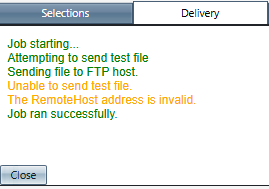
- Server Port - This indicates the specific FTP/SFTP port to use. This is an advanced feature and should be left at (default) unless the FTP operator indicates that it should be something different.
- Folder - This indicates the relative folder on the remote server where the files should be gathered from. If this is unknown, the default of “/” should be used.
- User Name - This is the user name for the remote server.
- Password - This is the password for the remote server.
- Pattern - Use the pattern field to specify which files are to be collected. Use the * (asterisk) as a wildcard to indicate any character or group of characters in the file name. For example, if the file to be collected is named “Acme_01-31-2012.PGP”, you could specify the pattern “Acme*.PGP”. This will attempt to collect all files that begin with “Acme” and end with “.PGP”. You may only use one * in the pattern field. The pattern must end in either .PGP or .GPG if the data being transferred is of a sensitive nature (as indicated by the selected imports specification)
- SFTP (SSH)
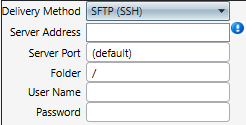
- Server Address - This is the host name of the server where files will be collected from. An IP address can also be used.
- clicking this icon will test the connection to the server address
- Server Port - This indicates the specific FTP/SFTP port to use. This is an advanced feature and should be left at (default) unless the FTP operator indicates that it should be something different.
- Folder - This indicates the relative folder on the remote server where the files should be gathered from. If this is unknown, the default of “/” should be used.
- User Name - This is the user name for the remote server.
- Password - This is the password for the remote server.
- Pattern - Use the pattern field to specify which files are to be collected. Use the * (asterisk) as a wildcard to indicate any character or group of characters in the file name. For example, if the file to be collected is named “Acme_01-31-2012.PGP”, you could specify the pattern “Acme*.PGP”. This will attempt to collect all files that begin with “Acme” and end with “.PGP”. You may only use one * in the pattern field. The pattern must end in either .PGP or .GPG if the data being transferred is of a sensitive nature (as indicated by the selected imports specification)
- FTPS (SSL)
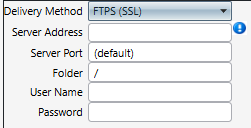
- Server Address - This is the host name of the server where files will be collected from. An IP address can also be used.
- clicking this icon will test the connection to the server address
- Server Port - This indicates the specific FTP/SFTP port to use. This is an advanced feature and should be left at (default) unless the FTP operator indicates that it should be something different.
- Folder - This indicates the relative folder on the remote server where the files should be gathered from. If this is unknown, the default of “/” should be used.
- User Name - This is the user name for the remote server.
- Password - This is the password for the remote server.
- Pattern - Use the pattern field to specify which files are to be collected. Use the * (asterisk) as a wildcard to indicate any character or group of characters in the file name. For example, if the file to be collected is named “Acme_01-31-2012.PGP”, you could specify the pattern “Acme*.PGP”. This will attempt to collect all files that begin with “Acme” and end with “.PGP”. You may only use one * in the pattern field. The pattern must end in either .PGP or .GPG if the data being transferred is of a sensitive nature (as indicated by the selected imports specification)
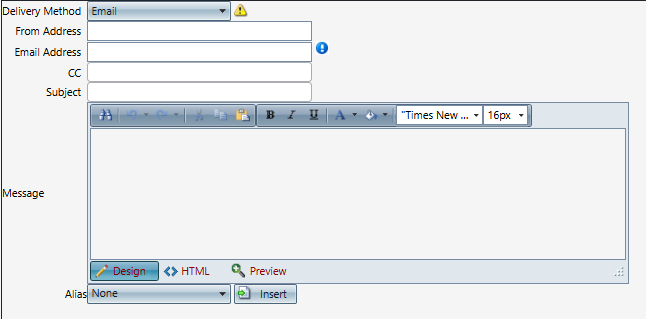
- Email
  if the delivery method is email of ftp and the file contains sensitive data, an encryption method must be selected, or the file will not be delivered. if the delivery method is email of ftp and the file contains sensitive data, an encryption method must be selected, or the file will not be delivered.
- From Address
- The email used here should be setup in your system already
- Email Address
 allows you to test connection from the system to the email address provided allows you to test connection from the system to the email address provided
- CC
- Subject
- Message
- Alias
- There may or may not be alias available to be inserted into the email template. Each report will be different.
Encryption Tab
- None
- no encryption method will be used
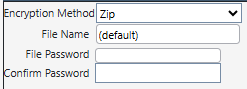
- Zip
- File Name to set on outgoing file
- the password entered here is the password needed to zip the file
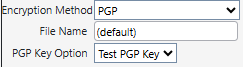
- PGP
- File Name to set on outgoing file
- PGP Key Option - select the PGP from the drop down
Results Tab
The Results tab will display a summary of information exported or information about any potential error(s) to help you resolve and try again.
Spec
File Naming
<Organization Identifier><YYYYMMDD>.csv Export Definitions
|
- #
- position the field is required to be listed in when importing the file
- Field Names
- A list of passable import fields, which can be transposed (viewed horizontally, instead of vertically) into the columns of a header row.
- Required
- Defines if information must be provided for the field or not.
- Type
- Defines the character type (what keyboard characters are allowed in the field):
- Alpha – letters, numbers and simple symbols (ex. @, -, / or &)
- Numeric – numbers only
- Date – format shown in Field Description (ex. MM/DD/YYYY)
- Boolean – 1 for True or 0 for False
- Max
- The maximum amount of the Type characters that can be passed for the field.
- Field Description
- Notes, examples and formatting
# | Field Name | Req. | Type | Max | Field Description | 001 | | NO | Alpha | 50 | Web order number | 002 | | YES | Alpha | 25 | Call date formatted as MM/DD/YYYY | 003 | | YES | Alpha | 25 | Call time formatted as HH:MM:SS | 004 | | YES | Alpha | 50 | Dialed Number Identification Service | 005 | | NO | Alpha | 15 | Automatic Number Identification
(blanked if all zeros)
| 006 | | YES | Alpha | 50 | Disposition of call | 007 | | NO | Alpha | 25 | Customer first name | 008 | | NO | Alpha | 12 | Middle initial | 009 | | NO | Alpha | 25 | Customer last name | 010 | | NO | Alpha | 255 | Customer address line 1 | 011 | | NO | Alpha | 255 | Customer address line 2 | 012 | | NO | Alpha | 50 | Customer City | 013 | | NO | Alpha | 20 | Customer State | 014 | | NO | Alpha | 20 | Customer Postal/ZIP code | 015 | | NO | Alpha | 50 | Customer Country | 016 | | NO | Alpha | 30 | Customer Phone number | 017 | | NO | Alpha | 255 | Customer Email address | 018 | | YES | Numeric | 1 | when NoSoliciting = 1 then 'TRUE' when NoSoliciting = 0 then 'FALSE' | 019 | | YES | Numeric | 1 | Indicates if record has phone lead data | 020 | | YES | Numeric | 1 | Indicates if record has email lead data | 021 | | YES | Numeric | 1 | Indicates if record has complete mailing address | 022 | | NO | Alpha | 4000 | Notes with special characters cleaned | 023 | | YES | Alpha | 255 | Script name | 024 | | YES | Alpha | 50 | Source name | 025 | | YES | Alpha | 255 | Campaign name | 026 | | YES | Alpha | 50 | Client name | 027 | | NO | Numeric | 20 | Age (blanked if less than 1) | 028 | | NO | Alpha | 50 | Gender | 029 | | NO | Alpha | 50 | Date of birth | 030 | | NO | Alpha | 255 | Social Security Number | 031 | | NO | Alpha | 50 | Custom field 1 | 032 | | NO | Alpha | 50 | Custom field 2 | 033 | | NO | Alpha | 50 | Custom field 3 | 034 | | NO | Alpha | 50 | Custom field 4 | 035 | | NO | Alpha | 50 | Custom field 5 |
Attachments
The attached documentation includes the Spec, Template, and Example.
|